



Try the #1 software for $1/month.
Norem ipsum dolor sit amet, consectetur adipiscing elit. Etiam eu turpis molestie, dictum est a, mattis tellus. Sed dignissim, metus nec accumsan.

Boutique Fitness Business Management

If you offer classes that use spin bikes, treadmills, Pilates reformers, rowers, yoga mats, or functional fitness stations, you’re going to love Wodify’s new Spot Booking feature.
Peoples’ spot in class matters to them. A lot. So Spot Booking in Wodify lets clients pick their preferred spot in the customized room you’ve built, and change it later if they want. Not only does this create a seamless start for classes, coaches can easily manage spots from Core or the mobile app. This means saving admin time and creating a more organized class experience.
Here’s how it works and how to roll it out in your studio.
Spot Booking went live in Wodify in September 2026 after a beta run, and it’s available on most Wodify subscription tiers.
Spot Booking lets you build a map of your room in Wodify and connect it to your classes. There are two parts to building your room: “Spots” that clients can book (e.g. Bike 12 or Reformer B) and “Objects” like the entry door or instructor’s platform. Objects can’t be reserved but simply help people find their way around the space to book the right spot.
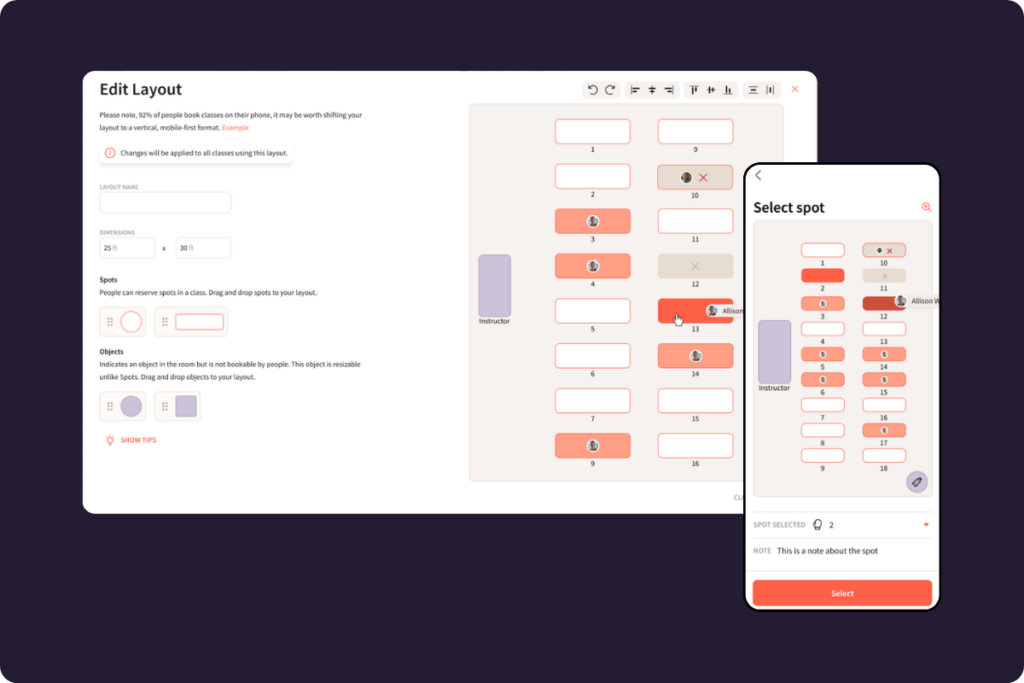
When a client books through the Wodify app or an online sale, they see your map and tap the spot they want. Once they’ve reserved the spot, they also have the ability to switch to any other open spot if needed. Coaches can see who’s where, move people around if needed, and even print the layout straight from Wodify.
Here are five reasons that spot booking is a key part of improving efficiency and creating a VIP client experience.
We all know that client. She’s booked the 5:30am class consistently for two years and she always takes bike 7 in the back row, right under the fan. If any of the other morning riders gets there first and takes “her” bike, you’re going to hear about it.
The “ideal” spot is different for everyone. For every client that wants the bike in the back corner, there’s one that wants to be close enough to the instructor to be at risk of getting sweat on. When a client gets to pick their spot, it shows them you care about their experience. That kind of small, consistent comfort is part of what keeps people booking week after week. And it’s also part of increasing retention rates and why group fitness studio clients pay group fitness studio prices.
When clients pick their spot and the system holds it for them, your staff gets their time (and sanity) back. You can also simply use Spot Booking for room assignment, like clarifying that Yoga is in Room A and Pilates is in Room B. Clients show up knowing exactly where they’re going. Coaches have all the info they need for the class ahead of them to show up prepared. As the Wodify release notes for Spot Booking explain, “fewer spot assignment requests means less admin work.”

When you assign a layout to a class, Wodify turns on reservations and sets the class limit to the number of available spots in that layout. For example, if you have 20 bikes, then 20 reservations will be available. In the event that a bike needs maintenance or a spot is unavailable for any reason, you can disable that spot for a date range or for one specific class. If someone is already booked in that spot, they will automatically get moved to another open spot.
Coaches can see spot assignments from Core or the Wodify mobile app, previewing the full layout with everyone’s names on it. If need be, they have the ability to reassign spots. For a coach running a 30-person HIIT class across multiple stations, knowing who’s going where before the first warm-up starts helps them facilitate class with confidence.
Some clients love seeing that their workout buddy grabbed the bike next to them. On the other hand, some clients would rather nobody knows where they’ll be. Wodify Spot Booking gives you a studio-wide setting to show or hide spot assignments. Further, each client can also hide their own spot from the class list in their app settings. A spot only shows to other clients when both settings are on.
Setup happens in Wodify Core, and most studios can have their first room built in one sitting. Here’s the order we’d recommend to get started.
Go to Classes > Settings, find the Room & Spot Selection section, and click Manage Rooms. Add a room for each physical space where you run spot-based classes, give it a name and location, and set its dimensions in feet or meters.
Inside each room, build a layout that matches how your equipment is actually set up. Drop in your spots, then add objects like doors, mirrors, or the instructor’s platform so clients can understand the layout to pick the right spot when booking.
A couple of tips from the help docs that save headaches later:
If you’re looking for a quick and easy setup, Wodify can name spots automatically based on the order you create them. You can also set a prefix, starting number, and suffix from the Spots tab. Prefer to make it more customized? Turn automatic naming off and give each spot its own name and icon. Whether it’s Station 12, Reformer 3, or “Bruce the Bike,” Spot Booking allows you to use the names your members are using.

Go to Classes > Calendar or Classes > List and open a class. In the Room & Spot Selection section, choose the room, toggle on Spot selection enabled, and pick the layout. Save it, and the change carries forward to all future instances of that recurring class. Note that you can still change individual classes later. Reservations turn on automatically and the class limit locks to your number of available spots.
If you want to hide spot assignments across the board, go to Web & Mobile > Mobile App > General and use the Class Spot Assignments setting. That covers the Mobile App, Kiosk+, and Simple Sign In. Members can control their own visibility from the app’s side menu under Settings > Privacy with the My Spot On Class List toggle.
As with any changes to the way you do things, make sure to communicate Spot Booking to your clients ahead of time. Keep it simple by sending a quick email or posting a short video showing everyone what your map looks like, how to book, and how to switch spots afterward if needed. You can also mention the visibility setting if that’s important for your clients. Also, have your coaches mention it at the end of classes for a week or two. Chances are, your regulars will figure it out fast once they realize they can lock in their favorite bike days ahead of time.
If you offer classes that use spin bikes, treadmills, Pilates reformers, rowers, yoga mats, or functional fitness stations, your clients probably have preferences about which spot they want. Spot Booking levels up their client experience by letting them choose their spot without needing staff interaction. Plus, it keeps every class capped at the equipment you actually have, and gives coaches a clear picture of what to expect.
Get started today by building your room(s), naming the spots, and turning on spot selection. Communicate ahead of time and then give it a couple of weeks after launch. Then take a moment to celebrate the lack of “can you save me a spot” messages that you and your staff have to deal with.
Full setup details live in the Spot Booking article in the Wodify Help Center.
If you’re not a Wodify client yet but want to find out how Spot Booking can improve the client experience in your group fitness studio, book a demo with our team today!
—
More reading: How to Use No-Show Fees and Waitlists to Fill Studio Classes
Norem ipsum dolor sit amet, consectetur adipiscing elit. Etiam eu turpis molestie, dictum est a, mattis tellus.
Already know which provider you want to select?
Click “Sign up Now” to lock in your choice and pick your start date. It’s quick and easy!
Looking for a bit more information or guidance? Click “Talk to Us” to arrange a call with us. We’ll help you find the perfect program tailored to your needs.
Norem ipsum dolor sit amet, consectetur adipiscing elit. Etiam eu turpis molestie, dictum est a, mattis tellus.
Norem ipsum dolor sit amet, consectetur adipiscing elit. Etiam eu turpis molestie, dictum est a, mattis tellus. Sed dignissim, metus nec accumsan.
Norem ipsum dolor sit amet, consectetur adipiscing elit. Etiam eu turpis molestie, dictum est a, mattis tellus. Sed dignissim, metus nec accumsan.
We’ll let you try Wodify for yourself and get a feel for what it can do for your business. A Wodify rep — a real person — will walk you through every feature.




"Wodify transformed how we run the gym. I now have more time to focus on growing my business and helping members thrive."Dana Bradley, Owner of Westside Fitness
Click “Talk to Us” to arrange a call so we can discuss the flexible access options that best fit your facility.
Click “Book a Demo” to learn more about how Wodify can help your business grow.
Your branded app is one conversation away. Click “Talk to Us” and our team will walk you through everything you need to get started.
Click “Book a Demo” to learn more about how Wodify can help your business grow.