


Try the #1 software for $1/month.
Norem ipsum dolor sit amet, consectetur adipiscing elit. Etiam eu turpis molestie, dictum est a, mattis tellus. Sed dignissim, metus nec accumsan.

Wodify
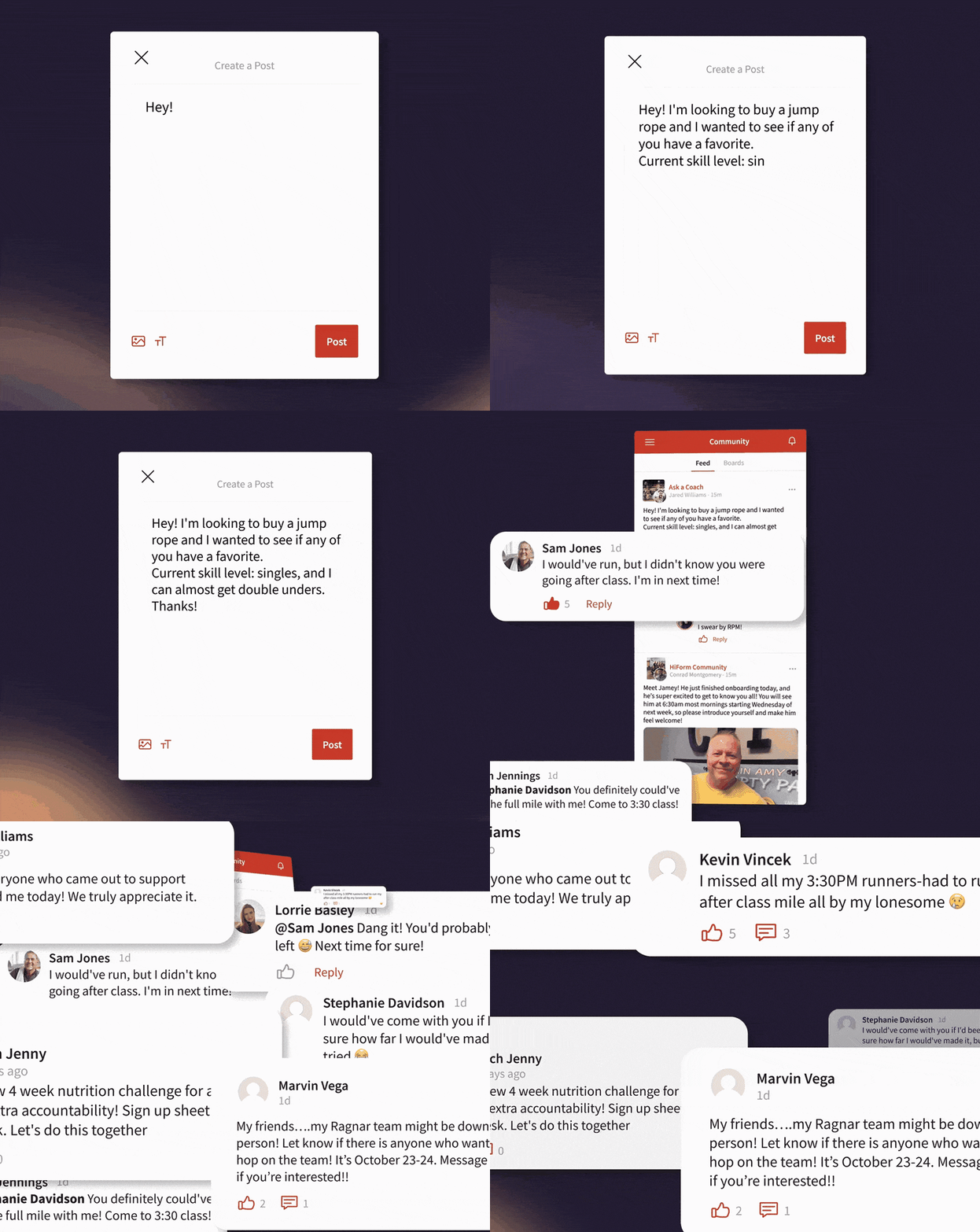
Community Boards are now live in Wodify. Starting November 19, 2026, clients can post, comment, and share photos and GIFs with your community, with videos coming soon. It all happens inside the Wodify app they already use to book classes and see the workout of the day, with real-time push notifications.
That means your private Facebook group, the early-morning crew’s group text, and the coach slack channel can all move into one place you control. No more announcements missed because half your clients never joined the facebook group.
Plenty of other gym apps give you one social feed and call it community. But in one feed, your coaches have nowhere private to share important info, and your HYROX crew’s race-week plans get buried under everything. With Community Boards, you choose the boards your business needs, from a nutrition challenge board to an announcements board where only staff can post, and each board’s client list keeps itself current as people join, leave, or switch programs.
Keep reading to see why Community Boards beat a single feed, how they work, and the first five boards to set up this week.
One feed for your whole community sounds simple until everyone starts posting. The Saturday partner WOD signup, a new client’s first pull-up, and a question about a lost water bottle all land in the same place, in front of every client.
Clients mute it, and the announcement you needed them to see goes unread.
Facebook groups and group texts solve the audience problem by splitting your community into separate threads. The catch is that you manage every one of them by hand, group texts cap how many people can join, and Facebook pulls clients’ attention to everything except your business.
Community Boards give each group its own space and use Segments to keep every audience current automatically. Here’s how the three options compare:
| One shared social feed | Facebook group or group text | Wodify Community Boards | |
| Who sees a post | Every client | Whoever is in that group or thread | Only that board’s audience |
| Separate spaces by group | No, one feed for all | Yes, each one managed by hand | Yes, a board per team, program, or topic |
| Keeping client lists current | Not needed, everyone is in | You add and remove people yourself | Segments add and remove clients for you |
| Staff-only space | Not separate | A separate group or thread | Employees board, included |
| Where it lives | Your current app | Facebook or personal phones | The Wodify app clients use to book class |
| Posting rules and safety | Depends on the app | Whatever Facebook or your phone carrier allows | You choose who can post, comment, and react on each board. Profanity and threats are blocked, and anyone can report or block. |
We built Community Boards because you kept asking for them. Owners told us they were tired of running their community through Facebook groups and group texts they couldn’t control. So we put it where your clients already are: the Wodify app, right next to class & appointment booking, workout logging, and Milestones. Your clients open the app every day, so a post there actually gets seen.
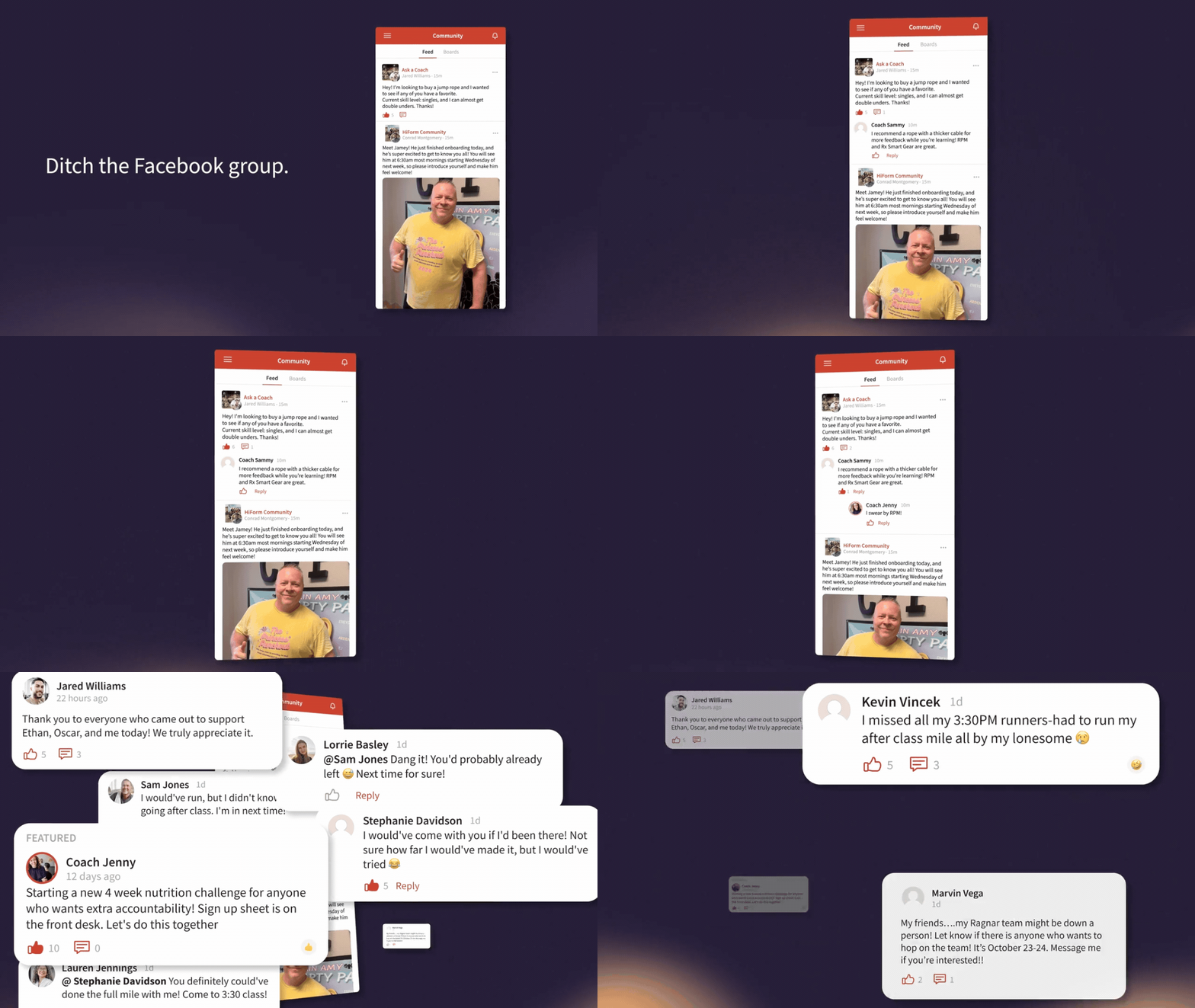
Community Boards are already on in your Wodify app. Your Social Feed and Employees boards are ready to go, with no setup needed. You only need to touch settings if you want custom boards or want to change who can post. Here’s what clients see and what you control.
Clients find Community Boards in the app’s bottom or side menu; you can pick the exact location using our custom navigation tool. They see every board they belong to, and they can post text, photos, and GIFs, comment, and like each other’s posts. Each client picks their notification settings board by board, so a busy social group doesn’t drown out a schedule change for everyone.
Every Wodify customer starts with two boards: a Social Feed for the whole community and an Employees board only your staff can see. On Accelerate and Ultimate, you can create unlimited custom boards and attach a Segment to each one.
A Segment is a saved filter of clients in Wodify, such as “joined in the last 90 days” or “enrolled in kids classes.” Clients join a board when they match its Segment and leave when they don’t, so nobody on your staff manages a client list. Built-in moderation tools, plus client blocking and reporting, keep every board safe, and you can set posting permissions for each board.Sports Performance
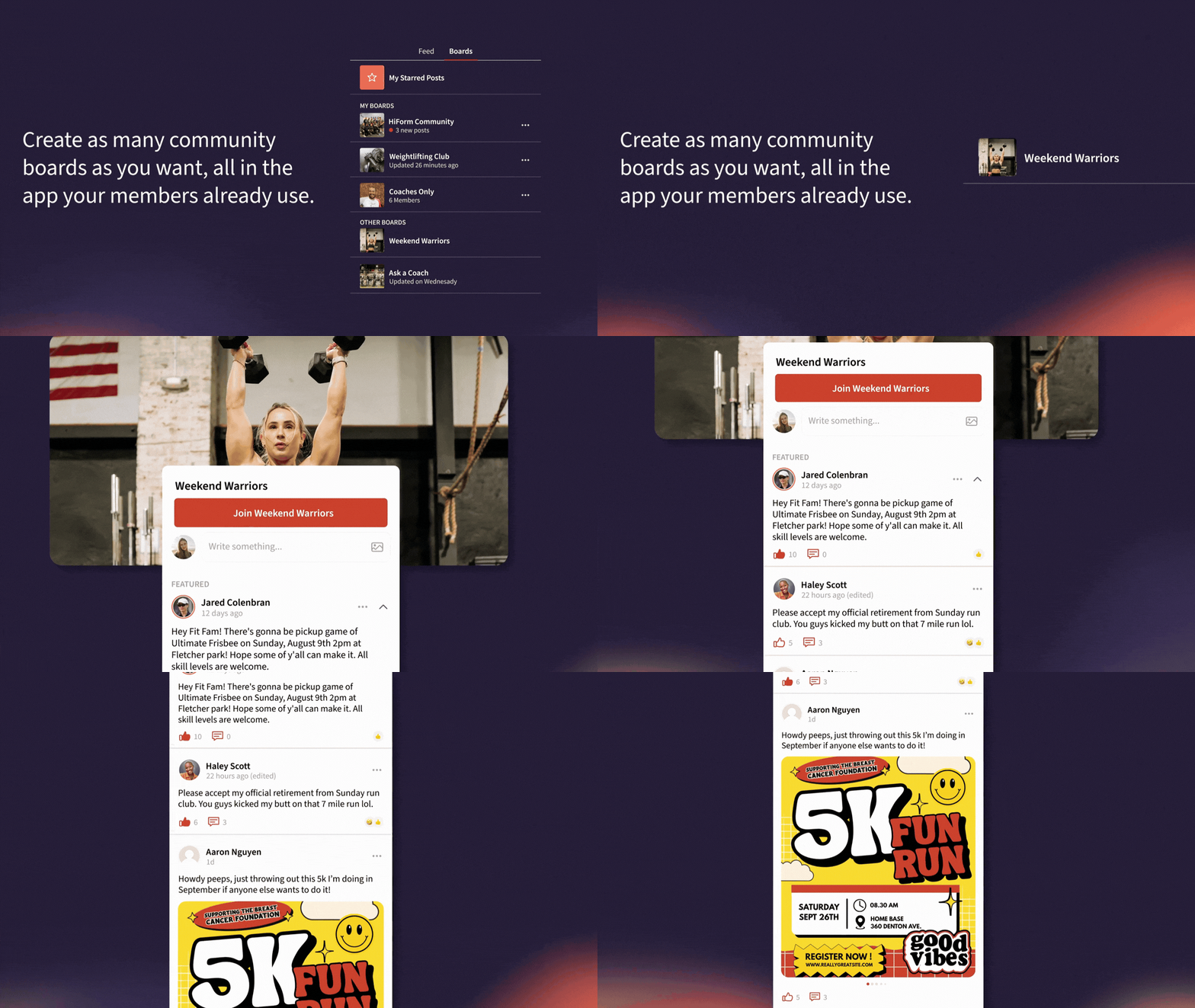
Start small. Five boards is enough to move most of your community’s conversation into one place, and each one replaces a tool you’re juggling now.
Every Wodify customer gets a Social Feed board by default. Use it for client shout-outs, event reminders, and the posts every client should see. Keep it to two or three posts from staff a week so it stays worth reading.
The Employees board is also included by default and is visible only to your team. Move the coach group text here: sub requests, equipment notes, and the reminder that the rower in the corner is broken. It keeps staff talk off personal phones and gives a new coach the whole history on day one.
Pick the one group that already has its own group text, like your competition team or kids class parents, and give it a board. Start with one and add the next once clients are posting. When your next nutrition challenge kicks off, that’s a natural second board.
Set up a read-only board where only staff can post and every client can read. Use it for schedule changes, holiday hours, and event details, so important updates don’t get buried under PR videos and meal photos. Pin the most important post to the top so it’s the first thing clients see.
Give clients a place to share the small wins that keep them coming back. Post a prompt every Friday asking for one to three bright spots. A 20-second handstand hold, a morning walk, or a class they made it to on a tough day all count. Ask everyone to cheer on someone else, and those small posts add up fast, especially in the weeks someone feels stuck.
Kick things off in each board with a short post about what it’s for and any rules. Pin it to the top so it’s the first thing everyone sees. Then have coaches mention Community Boards in class and send this the same day:
We’re moving our community into the Wodify app. Open the app and tap Community Boards to find the main feed and the board for your class or team. Announcements will only be posted there starting [date]. See you on the boards!
Answer new posts within a few hours and post regularly yourself, especially in the first few weeks, so checking the boards becomes a habit for clients.
Then set an end date for the old Facebook group and group texts. A firm date gets clients using the boards, and you stop managing extra apps. Your community now lives with the rest of your client retention tools, like Milestones and at-risk alerts.
Your Social Feed and Employees boards are already live in your Wodify app, with no setup needed. Pin a welcome post and kick off a Bright Spots thread this Friday. Then add an announcements board and watch your community’s conversation move out of Facebook and into the app your clients open every day.
Still juggling one crowded feed, a Facebook group, and a handful of group texts? Wodify gives every group its own board and keeps every client list current for you. See everything else that comes with our gym management software, or book a demo and we’ll show you Community Boards set up for a business like yours.
Wodify Community Boards are a community space inside the Wodify app where clients and staff post, comment, and connect between classes. Each board has its own audience, so you can give a team, program, or staff group its own conversation with no client cap. Every plan includes a Social Feed and an Employees board, and Accelerate and Ultimate customers can add custom boards.
No, Community Boards have no client cap, so a board can include your whole community. That’s the main difference from group texts, which limit how many people can join a single thread. A board for everyone works the same whether you run a 50-client studio or a 500-client academy.
All current Wodify plans include the Social Feed and Employees boards. Custom boards, including boards whose audiences update automatically from Segments, are included on the Accelerate and Ultimate plans. You can compare what each tier includes on the Wodify pricing page.
Yes, clients set notifications for each board from the Boards page in the Wodify app. A client can keep alerts on for the main feed and their team board and turn them off for everything else. That keeps the boards useful without filling anyone’s phone.
Yes, Community Boards are on by default, and you can hide them from the Wodify app if your team isn’t ready. Turn them back on once your boards are set up and seeded with a few posts.
Norem ipsum dolor sit amet, consectetur adipiscing elit. Etiam eu turpis molestie, dictum est a, mattis tellus.
Already know which provider you want to select?
Click “Sign up Now” to lock in your choice and pick your start date. It’s quick and easy!
Looking for a bit more information or guidance? Click “Talk to Us” to arrange a call with us. We’ll help you find the perfect program tailored to your needs.
Norem ipsum dolor sit amet, consectetur adipiscing elit. Etiam eu turpis molestie, dictum est a, mattis tellus.
Norem ipsum dolor sit amet, consectetur adipiscing elit. Etiam eu turpis molestie, dictum est a, mattis tellus. Sed dignissim, metus nec accumsan.
Norem ipsum dolor sit amet, consectetur adipiscing elit. Etiam eu turpis molestie, dictum est a, mattis tellus. Sed dignissim, metus nec accumsan.
We’ll let you try Wodify for yourself and get a feel for what it can do for your business. A Wodify rep — a real person — will walk you through every feature.



"Wodify transformed how we run the gym. I now have more time to focus on growing my business and helping members thrive."Dana Bradley, Owner of Westside Fitness
Click “Talk to Us” to arrange a call so we can discuss the flexible access options that best fit your facility.
Click “Book a Demo” to learn more about how Wodify can help your business grow.
Your branded app is one conversation away. Click “Talk to Us” and our team will walk you through everything you need to get started.
Click “Book a Demo” to learn more about how Wodify can help your business grow.